Table of Contents
- How We Selected These Productivity Gadgets for Remote Work
- Quick Comparison: Top Remote Work Gadgets at a Glance
- Ergonomic Home Office Accessories That Protect Your Body and Focus
- Best Noise-Canceling Headphones for Work: Focus Without Interruption
- Monitors, Docking Stations, and Connectivity Gear
- How to Organize a Home Office for Productivity: Lighting, Automation, and Cable Management
- Distraction-Free Tools and AI Hardware: The reMarkable 2
- Budget-Tier vs. Professional-Tier: Which Productivity Gadgets for Remote Work Are Worth the Investment
Last Updated: August 18, 2026
Choosing the wrong gear for your remote setup wastes more time than it saves. At Greenmatrax.com, we’ve tested and curated the best productivity gadgets for remote work so you don’t have to wade through hundreds of conflicting reviews. The difference between a frustrating home office and one that supports deep work often comes down to a handful of well-chosen peripherals.
Quick Picks:
- Best Overall Ergonomic Setup: Twelve South Curve Flex + Logitech MX Master 3S
- Best for Screen Real Estate: Dell UltraSharp U2723QE
- Best Distraction-Free Tool: reMarkable 2
- Best Budget Automation Pick: TP-Link Kasa Smart Plug EP10
- Best for Digital Nomads: Anker 737 Power Bank
How We Selected These Productivity Gadgets for Remote Work
Every product here was evaluated against four criteria: ergonomic impact, connectivity and workflow integration, durability relative to price, and how well it addresses the specific demands of remote collaboration. A digital nomad working from coffee shops has completely different requirements than a developer anchored to a home office. We’ve flagged the use case for each pick so you can self-select quickly.
| Gadget | Category | Best For | Price |
|---|---|---|---|
| Twelve South Curve Flex | Ergonomics / Stand | Posture + cooling at home or traveling | $79.99 |
| Logitech MX Master 3S | Input Device | All-day ergonomic mousing | $99.99 |
| Dell UltraSharp U2723QE | Monitor / Connectivity | 4K screen real estate + USB-C hub | $699.99 |
| Anker 737 Power Bank | Portable Power | Digital nomads charging laptops on the go | $159.99 |
| Philips Hue Lightstrip Plus | Ambient Lighting | Workflow-matched lighting environments | $79.99 |
| TP-Link Kasa EP10 | Automation | Low-cost office automation | $9.99 |
| reMarkable 2 | Focus / Note-taking | Distraction-free document work | $299.00 |
Quick Comparison: Top Remote Work Gadgets at a Glance
The best productivity gadgets for remote work span several categories, and no single device covers every gap. A laptop stand becomes significantly more useful when paired with an ergonomic mouse and external keyboard, because raising the screen forces you to decouple your input devices. The biggest ROI jump comes from fixing ergonomics first, neck and shoulder strain from a poorly positioned screen is the most common reason remote workers report declining focus after midday.
Prioritize ergonomics before any other upgrade. A $79 laptop stand that eliminates daily neck strain delivers more productivity return than most software subscriptions.
Ergonomic Home Office Accessories That Protect Your Body and Focus
Ergonomic home office accessories are the foundation of a sustainable remote setup. The right equipment reduces physical fatigue, keeps your posture aligned during long video conferencing sessions, and directly supports sustained focus.
Twelve South Curve Flex: Laptop Stand for Posture and Cooling
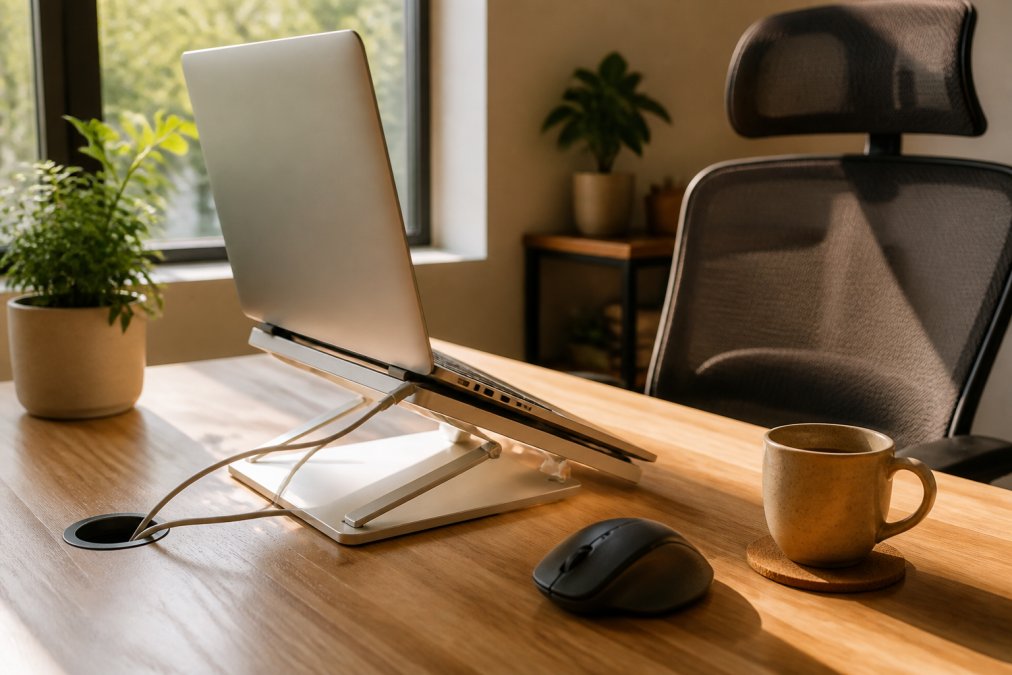
The Twelve South Curve Flex raises your laptop screen to eye level to correct posture and improves airflow underneath the chassis to reduce thermal throttling. For anyone doing video calls all day, the eye-level positioning alone changes how you come across on camera. The adjustable height and angle support laptops up to 7 pounds and 10.2 inches wide, covering virtually every modern MacBook and Windows ultrabook. The foldable design with included carrying case makes it ideal for hybrid workers.
Pros:
- Significantly reduces neck strain with proper screen elevation
- Improves laptop cooling for processor-intensive tasks
- Folds flat with carrying case for portability
Cons:
- Higher price point than basic stands
- Not the most compact folded profile for ultralight travel
Logitech MX Master 3S: The Ergonomic Mouse Built for All-Day Use
The Logitech MX Master 3S is the best ergonomic mouse for remote workers who spend hours in spreadsheets, design tools, or multi-window workflows. The MagSpeed electromagnetic scroll wheel shifts between ratchet mode for precise navigation and free-spin mode for rapid scrolling, with automatic transition based on scroll speed. The 8,000 DPI optical sensor tracks on glass, and Flow feature lets you control two computers with one mouse by moving the cursor to the edge of one screen, useful for anyone running a personal and work machine side by side.
Pros:
- Exceptional ergonomics for extended daily use
- MagSpeed scrolling is noticeably faster for document-heavy workflows
- Multi-device control via Logitech Flow reduces peripheral clutter
Cons:
- Premium price relative to standard wireless mice
- Large form factor may not suit smaller hands
Best Noise-Canceling Headphones for Work: Focus Without Interruption
The best noise-canceling headphones for work reclaim focus in shared or noisy environments. Active noise cancellation uses onboard microphones to sample ambient sound and generate an opposing audio wave that cancels it out, significantly reducing low-frequency background noise like HVAC systems, traffic, and open-plan chatter. For remote collaboration, microphone audio quality matters as much as what you hear, high-fidelity headphones with dedicated boom or beamforming microphones reduce the chance of teammates asking you to repeat yourself on calls.
Over-ear headphones with larger ear cups generally outperform earbuds for sustained deep work because passive isolation adds to active cancellation. According to NIOSH guidance on noise and hearing health, prolonged exposure to workplace noise affects concentration and cognitive performance, which is why noise-canceling headphones have become a standard ergonomic recommendation.
Test noise cancellation in your specific environment before committing. A headphone that excels in an office can underperform in a home environment with irregular noise sources. Most retailers offer return windows for this test.
Monitors, Docking Stations, and Connectivity Gear
Screen real estate is the most underrated productivity multiplier in a remote setup. A single laptop screen forces constant window switching; a quality external monitor eliminates that friction and supports genuine multitasking.
Dell UltraSharp U2723QE: 4K Screen Real Estate with Built-In USB-C Hub
The Dell UltraSharp U2723QE is the top pick for remote workers who need both display quality and connectivity in one device. The 27-inch 4K UHD panel uses IPS Black technology, delivering deeper blacks and better contrast than standard IPS panels. The integrated USB-C hub is where this monitor earns its desk space, a single USB-C cable from your laptop handles video output, data transfer, and up to 90W of power delivery simultaneously, functioning as a complete docking station built into the monitor bezel. Color coverage hits 98% DCI-P3 and 100% sRGB, making it a legitimate tool for content creators and developers.
Pros:
- 4K resolution with accurate color for creative and professional work
- USB-C hub eliminates the need for a separate docking station
- IPS Black technology offers superior contrast
Cons:
- High price point
- No built-in speakers
Anker 737 Power Bank: Portable Power for Digital Nomads
The Anker 737 Power Bank is the right choice for anyone whose productivity depends on staying charged away from a wall outlet. The 24,000mAh capacity and 140W Power Delivery 3.1 output means it can charge a modern laptop at full speed. The smart digital display shows real-time input and output wattage, remaining capacity, and estimated charge time, knowing you have exactly 40% battery left and 90 minutes of charge time changes how you plan a working session at an airport or co-working space.
Pros:
- 24,000mAh capacity handles multiple full laptop charges
- 140W PD 3.1 charges compatible laptops at maximum speed
- Informative digital display for real-time power management
Cons:
- Heavier and bulkier than lower-capacity alternatives
- Higher price point than standard portable chargers
How to Organize a Home Office for Productivity: Lighting, Automation, and Cable Management
Organizing a home office for productivity goes beyond tidying your desk. Lighting temperature influences alertness, cable clutter creates low-level visual stress, and ambient noise bleeds into video calls. According to research on lighting and workplace performance, cooler color temperatures in the 5000K-6500K range support focus during morning work sessions, while warmer tones in the evening reduce the melatonin-suppressing effect of blue light.
Philips Hue Lightstrip Plus: Ambient Lighting That Matches Your Workflow
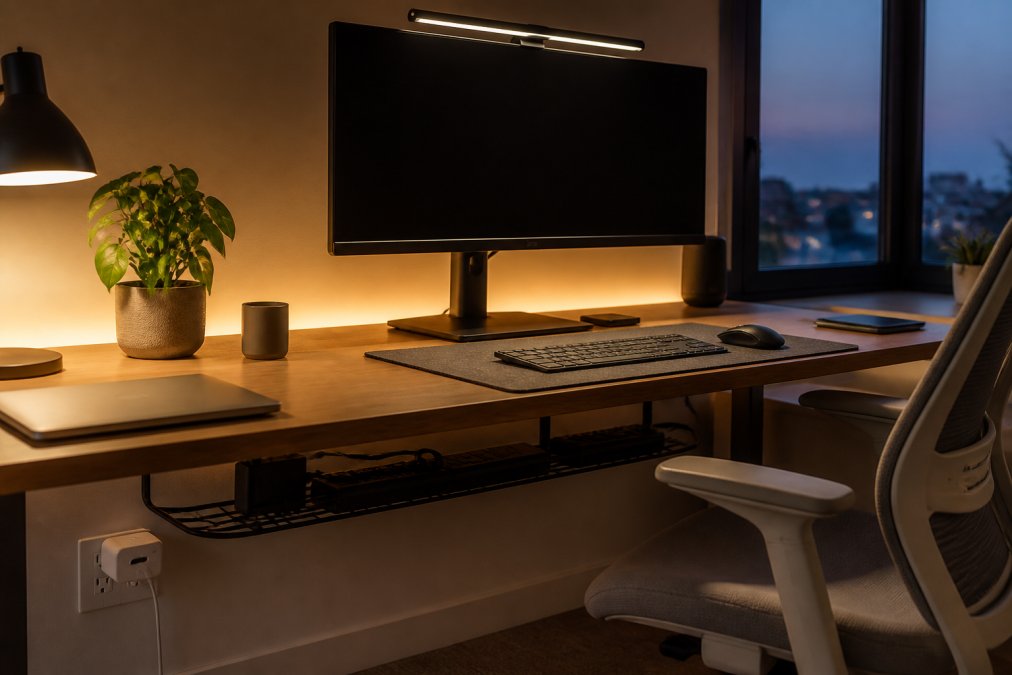
The Philips Hue White and Color Ambiance Lightstrip Plus gives you programmable control over your workspace’s color temperature and intensity. The 80-inch base kit is flexible, cuttable, and extendable, making it adaptable to desk edges, monitor backs, or shelf underlighting. Set a cool white scene for focused writing sessions, shift to warm amber for late-afternoon calls, and automate both transitions with the Philips Hue app. Compatibility with Alexa, Google Assistant, and Apple HomeKit means it integrates into any existing smart home ecosystem.
Pros:
- 16 million color options for precise lighting customization
- Flexible installation fits most desk and shelf configurations
- Full smart home ecosystem compatibility
Cons:
- Advanced automation requires a Philips Hue Bridge (sold separately)
- Higher upfront cost than basic LED strips
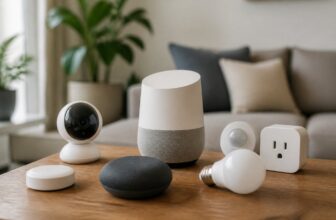
TP-Link Kasa Smart Plug: Office Automation for Under $10
The TP-Link Kasa Smart Wi-Fi Plug Mini EP10 is the most cost-efficient automation upgrade on this list. At $9.99 per unit, it turns any standard outlet into a remotely controlled, schedulable power source. The compact design doesn’t block the adjacent outlet. Schedule your monitor and desk lamp to power on five minutes before your first call, set your space heater to turn off automatically at end of day, and control any device remotely via the Kasa app. Voice control works with Alexa, Google Assistant, and Samsung SmartThings.
Pros:
- Affordable entry point for home office automation
- Compact design preserves adjacent outlets
- Easy scheduling via the Kasa app
Cons:
- No Apple HomeKit or Siri support
- Requires 2.4GHz Wi-Fi only
Don’t skip cable management when building out your desk setup. Loose cables create a real hazard around high-wattage devices and smart plugs. Use cable clips or a cable management tray before adding smart plugs or power strips to a busy desk.
Distraction-Free Tools and AI Hardware: The reMarkable 2
The reMarkable 2 occupies a category most productivity gadget lists ignore: intentional friction. The device is a 10.3-inch E-Ink tablet designed exclusively for writing, reading, and document annotation. There are no apps, no notifications, no browser, and no social media. The paper-like display uses a textured surface that mimics the resistance of writing on paper, which many users find significantly reduces the mental gap between thinking and capturing ideas compared to typing on glass.
Handwriting-to-text conversion works well for legible handwriting, and cloud syncing keeps your notes accessible across devices. PDF and ePUB support makes it a capable document review tool for professionals who spend time annotating contracts, research papers, or briefs. The reMarkable 2 is best for individuals who find that opening a laptop to take a note inevitably turns into checking email. According to research on digital distraction and deep work, task-switching and notification interruptions measurably reduce the quality of focused cognitive work. A device that physically cannot display a notification removes that variable entirely.
Pros:
- Natural, paper-like writing experience
- Distraction-free by design: no apps or notifications
- Battery life up to two weeks
Cons:
- Marker and folio sold separately, increasing total cost
- No backlight for low-light use
- Limited software compared to standard tablets
Budget-Tier vs. Professional-Tier: Which Productivity Gadgets for Remote Work Are Worth the Investment
Not every remote worker needs a $700 monitor and a $300 writing tablet. The best productivity gadgets for remote work at the budget tier solve real problems without requiring a full desk overhaul.
Budget tier (under $50): The TP-Link Kasa EP10 at $9.99 delivers disproportionate automation value. A $15-$30 basic laptop stand and a $25 wired ergonomic mouse cover the posture problem adequately for workers on tight budgets.
Mid-range tier ($50-$150): The Twelve South Curve Flex at $79.99 and the Philips Hue Lightstrip Plus at $79.99 both deliver professional-grade results at justifiable prices for full-time home workers. The Logitech MX Master 3S at $99.99 is the mid-range pick most frequently upgraded from budget alternatives.
Professional tier ($150+): The Anker 737 at $159.99 and the Dell UltraSharp U2723QE at $699.99 are investments. The Dell is the right call if you’re billing clients for creative work or spending more than six hours a day in front of a screen. The Anker is the right call if your income depends on staying connected away from a power outlet. The reMarkable 2 at $299 is a niche professional-tier pick that pays for itself quickly for knowledge workers who bill by the hour and lose significant time to digital distraction.
Remote workers logging six or more hours daily at a desk should prioritize the professional tier for ergonomics (stand, mouse, monitor) and budget tier for automation. The ROI on physical comfort compounds over time in a way that smart home gadgets don’t.
Professional-tier hardware typically has a longer usable lifespan than budget alternatives. For remote workers building a permanent home office, the EPEAT registry for sustainable electronics is a useful resource for identifying products with verified environmental performance standards. Remote workers with ADHD or sensory processing differences often benefit most from the distraction-reduction tools on this list, the reMarkable 2’s notification-free environment, the Philips Hue’s ability to create a consistent sensory cue for "focus mode," and noise-canceling headphones that reduce auditory overload are all evidence-based supports.
Assembling the right remote work setup is harder than it should be, especially when most review sites bury the practical tradeoffs under affiliate-optimized rankings. Greenmatrax.com exists to cut through that: we curate and review quality gadgets with a focus on genuine value and reliable performance, aggregating the best tech deals so you don’t have to check a dozen sites to find what you need. Whether you’re building your first home office or upgrading a setup that’s been frustrating you for months, browse Greenmatrax.com for current pricing and daily deals on the gadgets covered in this guide.
Frequently Asked Questions
What are the best gadgets to have if you work from home at a computer?
The most impactful gadgets for computer-based remote work are an ergonomic mouse, a laptop stand, a high-resolution monitor, and noise-canceling headphones. Together, these address the four biggest drains on productivity gadgets for remote work setups: poor posture, eye strain, audio distractions, and limited screen real estate. A smart plug for automating your office environment rounds out a solid foundational setup without requiring a large upfront investment.
How can I improve my home office setup for better focus?
Start with lighting. Tunable white light that shifts from cool to warm throughout the day helps maintain alertness in the morning and signals wind-down in the evening. Add noise-canceling headphones to block ambient sound during deep work. If you take a lot of handwritten notes, a distraction-free digital paper tablet like the reMarkable 2 removes app notifications entirely. Finally, cable management and desk organization reduce visual clutter, which research consistently links to reduced cognitive load.
What ergonomic home office accessories make the biggest difference?
A laptop stand combined with an external keyboard and mouse is the single highest-impact ergonomic upgrade for most remote workers. Raising the screen to eye level eliminates the forward head posture that causes neck and shoulder strain. After that, lumbar support cushions, monitor arms for adjustable positioning, and anti-fatigue mats round out an ergonomic home office accessories setup. These changes reduce physical fatigue, which directly extends productive working hours.
Do I need to spend a lot to get good noise-canceling headphones for work?
No. The best noise-canceling headphones for work span a wide price range. Mid-range options deliver strong active noise-cancellation for calls and focused tasks, while premium models add higher-fidelity audio, better microphone quality, and longer battery life. For most remote workers who primarily need to block household noise during video conferencing, a mid-range pair performs well. Spending more makes sense if you are frequently on calls in loud environments or need high-fidelity audio for content creation.
How do I know a recommended gadget is actually worth buying and not just heavily promoted?
Look for platforms that separate editorial selection from promotional placement. Greenmatrax.com reviews and selects gadgets based on verified performance criteria before listing them, rather than featuring whatever product offers the highest affiliate margin. Check whether the recommendation explains specific use cases, lists real drawbacks, and compares budget and professional tiers honestly. A site that only shows pros and no cons is optimizing for clicks, not for helping you make the right purchase.
This article was written using GrandRanker