Table of Contents
- Quick Comparison: Top Video Editing Gadgets
- Dedicated Video Editing Consoles for Faster Workflows
- External SSD for Video Editing: Speed and Durability
- Video Editing Keyboard Shortcuts and Macro Controllers
- Multi-Monitor Displays for Professional Color Grading
- Connectivity and Cable Management: Docking Stations
- Wireless Video Monitoring On Set
- How to Build Your Video Editing Gadget Setup
Last Updated: August 28, 2026
Quick Comparison: Top Video Editing Gadgets
Building the right best gadgets for video editing workflow setup transforms how fast you work and how comfortable you feel during long editing sessions. At Greenmatrax.com, we meticulously review and select high-quality electronics to ensure you receive genuine value and reliable performance without the hassle of searching multiple websites.
| Gadget | Type | Best For | Key Advantage |
|---|---|---|---|
| Elgato Stream Deck + | Control Console | Streamers & editors | Customizable LCD keys with tactile dials |
| Loupedeck CT | Editing Console | Professional color graders | Deep software integration, touchscreen |
| TourBox NEO | Universal Controller | Budget-conscious creators | Affordable, works with Adobe & DaVinci |
| Blackmagic DaVinci Resolve Speed Editor | Keyboard | DaVinci Resolve users | Optimized for cut page, includes Studio license |
| Samsung T7 Shield | External SSD | On-location shoots | Rugged, 1,050 MB/s transfer speed |
| Dell UltraSharp U4021QW | Multi-Monitor Display | Color-critical work | 5K2K curved screen, 98% DCI-P3 accuracy |
| CalDigit TS4 | Docking Station | Multi-device workflows | 18 ports, 98W power delivery |
| Accsoon CineEye 2S Pro | Wireless Monitor | Remote production | 1200-foot range, sub-60ms latency |
Dedicated Video Editing Consoles for Faster Workflows
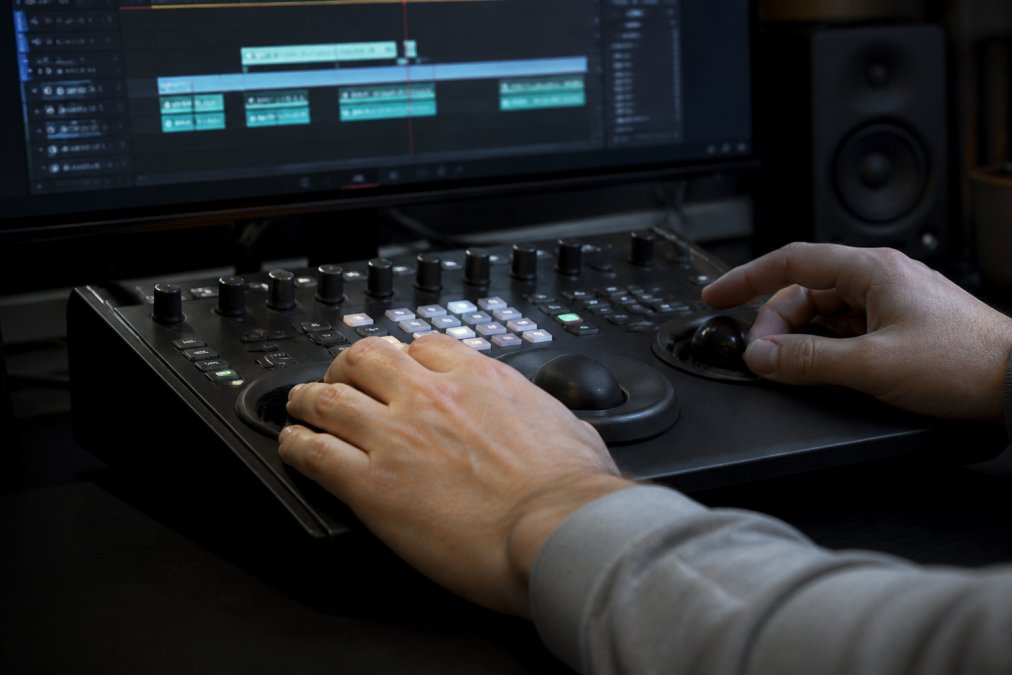
A dedicated video editing console eliminates friction between your creative vision and your software. Instead of hunting through menus or memorizing keyboard shortcuts, your fingers stay on physical controls that map directly to the tools you use most. Muscle memory matters more than speed when you’re in the flow state.
Elgato Stream Deck +
The Elgato Stream Deck + gives you 8 LCD keys, 4 push encoders with LED indicators, and a touch strip for dynamic control. Each element responds with haptic feedback that confirms your input. It works across streaming, editing, and audio software simultaneously, adapting profiles automatically based on which application is active. Once configured, repetitive tasks that used to take five clicks now take one.
Map your most-used color correction adjustments to the encoders. The tactile feedback of turning a physical dial beats clicking a mouse across a slider every time.
Pros: Highly customizable, works across multiple applications, excellent build quality, LED feedback on every button
Cons: Higher price point, requires initial setup investment, software occasionally needs updates
Loupedeck CT
The Loupedeck CT combines a 12-button touchscreen, 6 tactile knobs, and 8 physical buttons into a compact form factor. Native integrations run deep, when you’re in Lightroom, the buttons switch to Lightroom functions automatically. This console excels for professionals committed to one or two primary software applications.
Professional photographers and video editors who spend most of their time in one or two applications and want maximum efficiency in those tools.
Pros: Deep software integration, combines physical and touch controls, Dynamic Mode adapts to your active application, excellent for color grading
Cons: Premium price, learning curve for full customization, primarily designed for Adobe and Blackmagic software
TourBox NEO
The TourBox NEO is the budget-conscious pick without sacrificing core functionality. At a fraction of the cost of the Loupedeck CT, it delivers a knob, dial, scroll wheel, and 12 programmable buttons that work across Adobe Creative Suite, Final Cut Pro, and DaVinci Resolve. You’re trading haptic feedback, wired-only connection, and less sophisticated software integration for the lower price. For solo creators testing whether a dedicated console improves their workflow, the TourBox NEO is the logical starting point.
Pros: Affordable, works across multiple applications, ergonomic design, USB Type-C, cross-platform compatibility
Cons: No haptic feedback, wired only, requires manual profile switching between applications
Blackmagic Design DaVinci Resolve Speed Editor
The DaVinci Resolve Speed Editor is purpose-built for the cut page in DaVinci Resolve. It includes a search dial for timeline navigation, dedicated trim buttons, and a source tape button that lets you find clips without touching the mouse. The bonus: it includes a full DaVinci Resolve Studio license, which normally costs separately.
This is DaVinci Resolve only. Don’t buy it expecting to use it across multiple editing applications. If you’re locked into Resolve, it’s exceptional. If you’re exploring different NLEs, skip it.
Pros: Optimized specifically for DaVinci Resolve cut page, includes Studio license, excellent for fast editing workflows, physical controls for trimming
Cons: Limited to DaVinci Resolve only, may take time to adapt to specialized layout, higher price point
External SSD for Video Editing: Speed and Durability
Video files are large. A single hour of 4K footage at 10-bit color depth consumes 500GB or more (peer-reviewed research). Working directly from your internal drive degrades performance and risks data loss if the drive fails mid-project. An external SSD provides the throughput your editing software needs to scrub through timelines smoothly and render faster.
The Samsung T7 Shield delivers 1,050 MB/s sequential read speeds and 1,000 MB/s write speeds, fast enough for 4K editing without bottlenecks. The IP65 rating means it survives dust and water exposure.
Always keep project files and media on separate drives. Store your editing software and operating system on your internal drive, media and projects on the external SSD. This separation prevents a corrupted project from affecting your system stability.
Best for: Video editors working on location, creators needing rugged storage, anyone editing 4K or higher resolutions
Video Editing Keyboard Shortcuts and Macro Controllers
Keyboard shortcuts are faster than the mouse for repetitive tasks, but remembering 50+ shortcuts across multiple applications is unrealistic. A macro controller bridges the gap by giving you physical buttons mapped to your most-used shortcuts.
The Razer Stream Controller X uses the Loupedeck software backend, integrating with the same applications as the Loupedeck CT in a more compact, affordable form. Fifteen programmable LCD buttons provide enough real estate for your core shortcuts.
Streamers, content creators, and video editors on a budget who want macro buttons without learning a complex interface or spending on premium hardware.
You get buttons and visual feedback, but no dials, no touch strip, and no haptic feedback. For pure shortcut mapping, it’s sufficient.
Pros: Affordable, compact, 15 programmable buttons, visual LCD feedback, Loupedeck software integration
Cons: No dials or physical encoders, relies on software for customization, learning curve for setup
Multi-Monitor Displays for Professional Color Grading
Color grading requires multiple displays: one for your timeline and editing interface, another for color correction tools, and ideally a third for reference or client review.
The Dell UltraSharp U4021QW is a 40-inch curved 5K2K (5120 x 2160) display that effectively replaces two standard monitors. The 98% DCI-P3 color gamut coverage means your color grading work translates accurately to cinema and broadcast deliverables (smpte.org). The curved design reduces eye strain during long sessions by keeping your eyes focused at consistent distance from all points on the screen. Thunderbolt 3 connectivity with 90W power delivery means a single cable handles video, data, and charging for your laptop.
Pros: Vast screen real estate, excellent color accuracy, single-cable Thunderbolt solution, curved design reduces eye strain
Cons: High price point, large footprint, may not fit all desk setups
Connectivity and Cable Management: Docking Stations
A professional editing workstation connects to multiple devices: external SSDs, audio interfaces, capture cards, displays, and input devices. Managing 15+ cables becomes chaotic fast.
The CalDigit TS4 Thunderbolt Station 4 consolidates everything into a single connection. Eighteen ports include three Thunderbolt 4 (40Gb/s), three USB-C (10Gb/s), five USB-A (10Gb/s), 2.5 Gigabit Ethernet, and SD card slots. The 98W power delivery charges your laptop while you work. When you need to leave your desk, you unplug one cable instead of fifteen.
Place the dock behind your monitors or on a cable tray beneath your desk. Run cables through conduit to keep your workspace clean. The visual simplicity of one cable leaving your laptop makes the setup feel professional.
Pros: 18 ports of comprehensive connectivity, 98W power delivery, Thunderbolt 4 daisy-chaining, SD card slots for ingest
Cons: Premium price, requires Thunderbolt 4 host device, large footprint
Wireless Video Monitoring On Set
When you’re shooting on location, the director and focus puller need to see what the camera sees. Wireless video transmission eliminates the cable tether and lets crew position themselves anywhere on set.
The Accsoon CineEye 2S Pro transmits 1080p60 video up to 1200 feet with sub-60ms latency (accsoon.com). SDI and HDMI inputs mean it works with virtually any cinema or broadcast camera. The system transmits to up to four dedicated receivers or iOS/Android devices simultaneously. The Accsoon Go app on iOS and Android provides false color, waveform, histogram, and LUT support, transforming smartphones and tablets into professional monitoring tools.
Boot-up time is slow, around 30 seconds. Plan accordingly before rolling. The app functionality is solid but not as polished as dedicated hardware monitors.
Pros: Long transmission range, low latency, SDI and HDMI support, transmits to multiple devices, professional monitoring tools in the app
Cons: Slow boot-up, app needs improvement, premium price point
How to Build Your Video Editing Gadget Setup
Start by identifying your primary software. Everything else flows from that choice. If you’re in DaVinci Resolve, the Speed Editor makes sense. If you’re in Adobe Premiere Pro, the Loupedeck CT or Elgato Stream Deck + is the right move. If you’re platform-agnostic, the TourBox NEO covers all bases affordably.
Next, assess your physical workspace. Do you have room for multiple monitors? A 40-inch curved display demands desk space. If you’re in a cramped apartment, a portable 15-inch reference monitor paired with your laptop might be more practical.
Then prioritize storage. External SSDs are non-negotiable for video work. Start with one 2TB drive for active projects. As your library grows, add a second drive for archival.
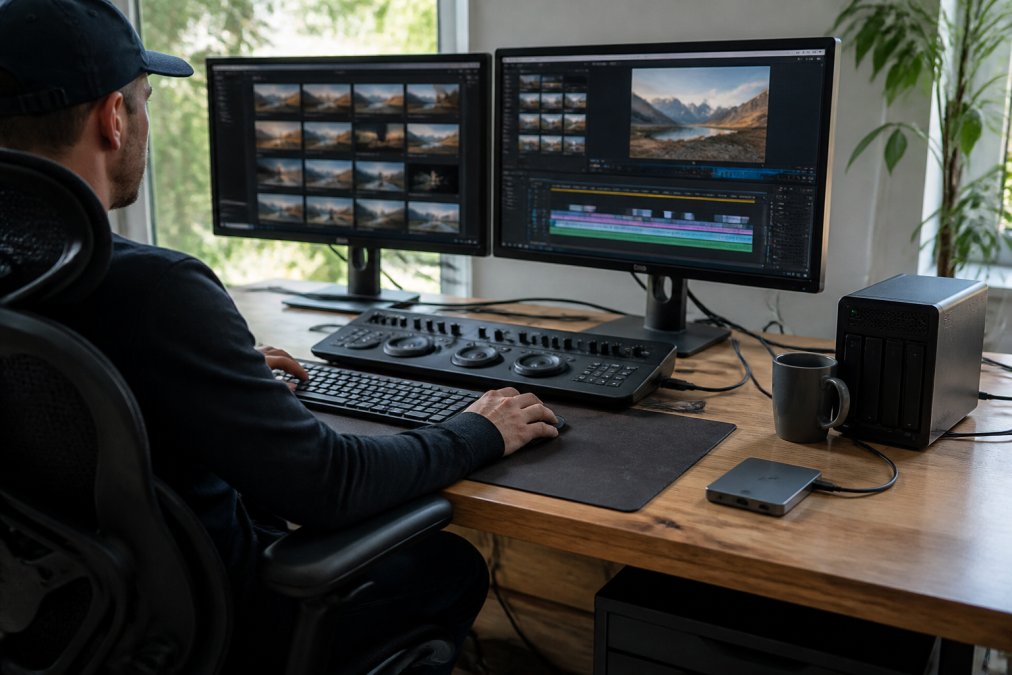
Cable management comes next. A docking station like the CalDigit TS4 consolidates connections and keeps your desk clean. Add ergonomic peripherals last. A good keyboard and mouse matter more than people realize. When you’re editing for eight hours, wrist position and hand fatigue become limiting factors.
Wireless monitoring is optional unless you’re shooting on set regularly. Building incrementally is often recommended. Start with a control console and external SSD. Use those for a month. Identify which tasks still feel slow or uncomfortable. Then add the next piece of gear to address that specific pain point.
The best [gadgets for](/best-productivity-gadgets-for-remote-work-2026/) video editing workflow aren’t the most expensive ones. They’re the ones that address your specific bottlenecks. A $150 TourBox NEO that you use daily beats a $550 Loupedeck CT gathering dust because it doesn’t match your software.
Frequently Asked Questions
What are the best gadgets for video editing?
The best gadgets for video editing include dedicated editing consoles like the Loupedeck CT or Elgato Stream Deck +, external SSDs for fast file transfer, multi-monitor displays for color grading, and ergonomic keyboards. Your choice depends on your software (Premiere Pro, DaVinci Resolve, Final Cut Pro) and budget. Editing consoles with physical controls and tactile feedback can improve workflow efficiency by automating repetitive tasks.
Do I need a dedicated video editing console?
A dedicated editing console isn't mandatory, but it can improve efficiency for professional workflows. Consoles like the Blackmagic Design DaVinci Resolve Speed Editor or TourBox NEO provide physical controls and customizable macros that keyboard shortcuts alone cannot match. They can allow you to focus on creative decisions rather than menu navigation, making them especially valuable for non-linear editing and color grading tasks.
What external SSD for video editing should I choose?
The Samsung T7 Shield is an excellent choice for video editors needing durability and speed. It delivers sequential read/write speeds up to 1,050 MB/s, has IP65 dust and water resistance, and withstands drops from up to 9.8 feet. For video editing workflows handling large files, fast transfer speeds are essential to reduce buffer times and improve throughput during post-production. Check Greenmatrax.com for current pricing and availability on external SSDs suited to your storage needs.
How do video editing keyboard shortcuts improve my workflow?
Keyboard shortcuts and macro controllers map complex commands to single buttons, eliminating menu navigation and reducing latency between actions. Tools like the Razer Stream Controller X let you customize shortcuts for your specific software, whether you're color grading, trimming clips, or managing audio. This customization can accelerate repetitive tasks and allow you to maintain creative momentum without breaking focus to search menus.
This article was written using GrandRanker